Add and manage patients
The Patients area is the home for patient records. From a patient’s page you can open notes, start a consultation, and manage patient documents.
Add a patient
- Open Patients.
- Select + ADD PATIENT. You can also choose + New → New Patient from the main navigation.
- Enter the required patient and contact information:
- First name and last name
- Date of birth and sex
- Email and phone
- Address, city, postal code, and country (with a state or locality when required)
- Select SAVE. Basilias opens the new patient record.
Enter only the information required for the record and verify it before saving.
Find a record
On the Patients page, use the search field to search by first or last name. You can also change the sort field and direction. Select a patient to open their record.
Work from the patient record
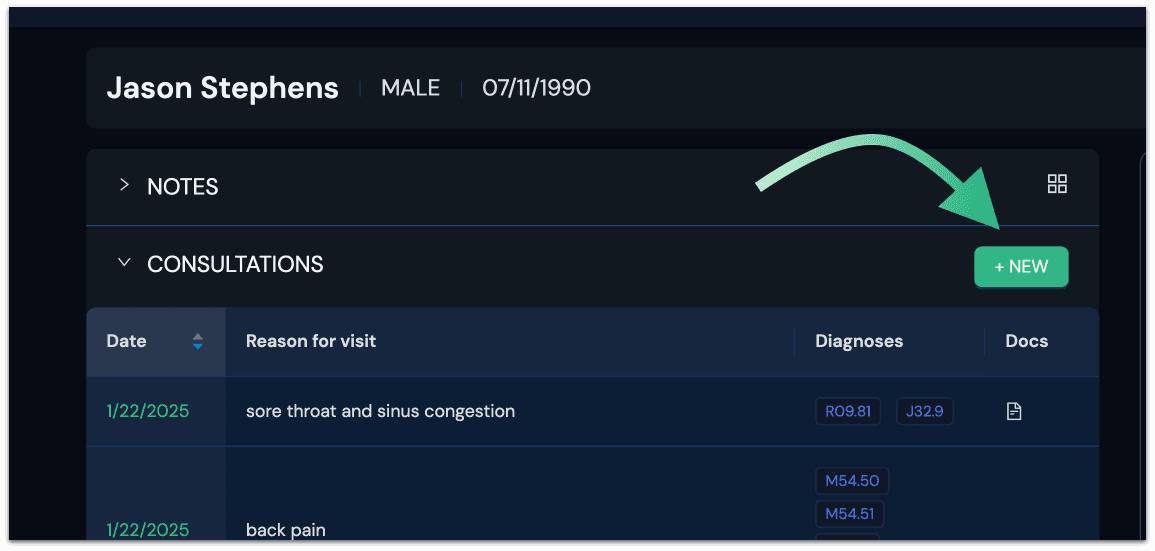
A patient record groups the work for that patient:
- NOTES lists saved notes.
- CONSULTATIONS lists prior consultations. Select NEW to start one for this patient.
- DOCUMENTS lists patient documents. Select ADD to upload or enter documents.
The right-side patient card has an EDIT option for updating the patient details. Select SAVE after making changes.
Continue the workflow
Start a consultation from CONSULTATIONS, or add patient documents from DOCUMENTS.